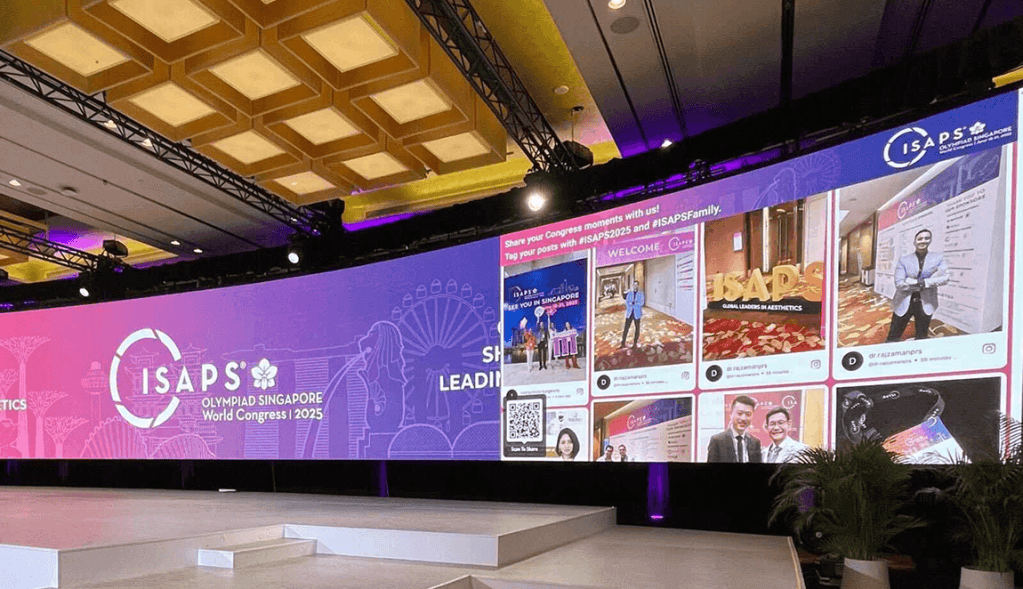
Want to show a social media live feed on a big screen for free? With Social Walls by Taggbox, you can collect live social media posts, photos, and videos and display them on a TV, projector, LED screen, or digital display. Create a social wall, connect your social media sources, customize the display, and open it on your screen to showcase live content.
For events, this can turn a regular big screen into a live stream of what attendees are sharing and experiencing. Social Walls by Taggbox supports content collection from multiple social platforms and provides moderation and display options for event screens.
Here’s how to set it up.
1. Decide what social content you want to show
Start by choosing the type of content you want on your screen.
You can collect posts through:
- Event hashtags
- Social media mentions
- Account feeds
- Keywords
- User-generated content
For an event, a hashtag is one of the easiest options. For example, an event called TechFest 2026 could use #TechFest2026. Attendees can use the hashtag when sharing photos, videos, and updates.
2. Create a social media live feed
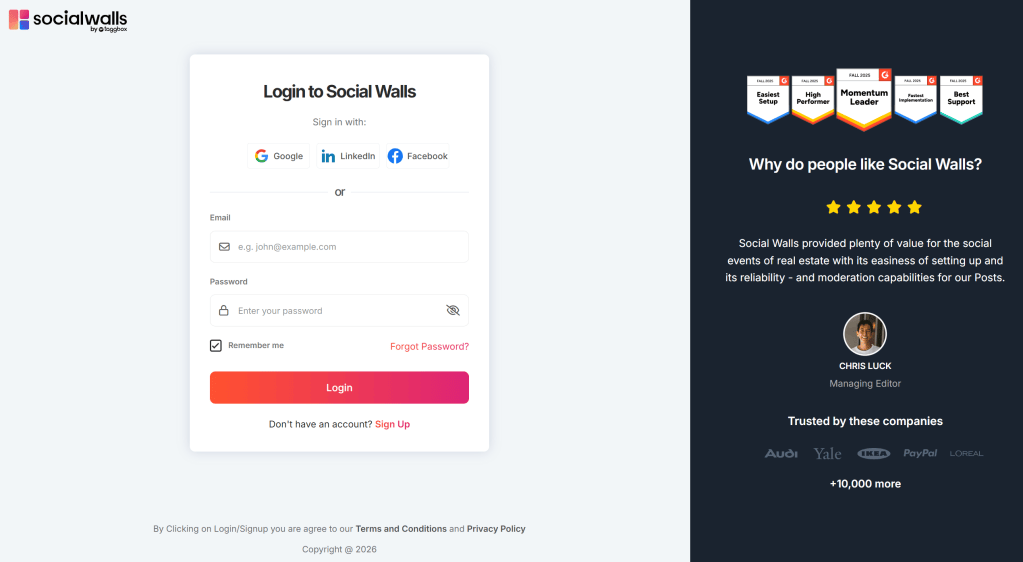
The easiest way to collect and display this content is with a social media wall.
Social Walls by Taggbox lets you create a live social media feed and display social content on screens. You can collect relevant posts, customize how they look, and display the feed in real time.
If you want a free setup, start with the available free option and check the supported social sources and features before your event.
3. Customize your social media wall
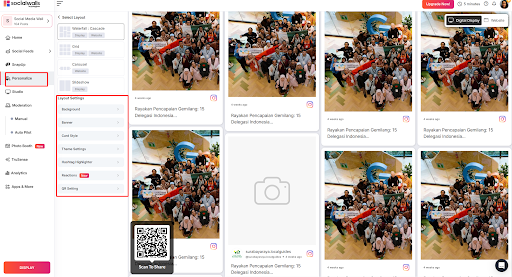
A big screen needs a layout that people can understand from a distance.
Keep the design simple and focus on visual content. You can customize elements such as:
- Layout
- Background
- Fonts
- Colors
- Post display
- Branding
If you are displaying public social media posts at an event, moderation is also important. It helps you control which posts appear on the screen.
4. Connect the feed to a big screen
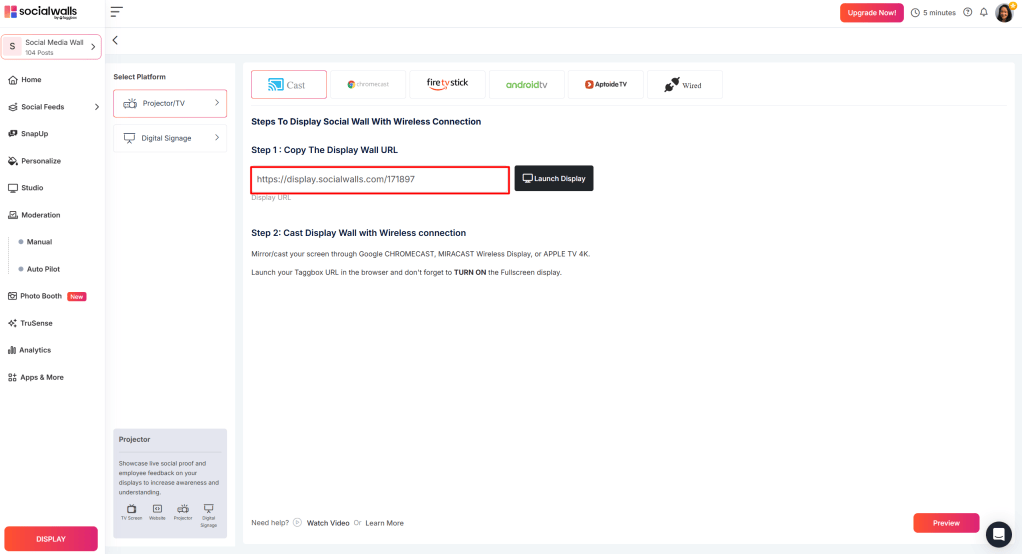
Once your social media wall is ready, open its display view on your laptop or browser.
Then connect the laptop to your big screen using:
- HDMI
- A projector
- An LED screen
- A smart TV
- A digital signage display
You can also use wireless casting if your devices support it.
Open the live feed in full-screen mode, and your social media content will appear on the big screen.
5. Encourage people to post
A live social media feed works best when people actively contribute to it.
At an event, ask attendees to:
- Share photos and videos
- Use the event hashtag
- Tag the event account
- Share their favorite moments
- Post from different parts of the venue
When attendees see their posts appear on the big screen, it gives them a simple reason to keep participating.
What do you need for a free setup?
The basic setup is simple:
Social media content + social media wall + laptop or browser + big screen
You can start with a free social media wall option and test the setup before your event. If you need more feeds, displays, customization, or audience capacity later, you can explore paid features based on your requirements.
Final thoughts
You don’t need a complicated setup to show a social media live feed on a big screen for free.
Choose the social content you want to collect, create a social media wall, customize the display, connect it to your screen, and encourage people to post.
For events, it can turn a regular big screen into a live stream of what your audience is seeing, sharing, and experiencing.


Leave a comment