
Elementor makes website design easy, but when it comes to integrating social media—especially Instagram—many users struggle to find a solution that doesn’t require coding.
The good news? There are several powerful tools that allow you to embed Instagram feed in Elementor without coding, helping you display dynamic content, boost engagement, and enhance your website’s visual appeal.
In this guide, we’ll explore the best tools and how they simplify the process of adding an Instagram widget to Elementor website.
Why Embed Instagram Feed on Elementor?

Before diving into the tools, let’s understand why this instagram integration matters.
1. Keep Your Website Dynamic
An Instagram feed automatically updates with new content, keeping your website fresh without manual effort.
2. Improve Engagement
Visual content like Instagram posts, reels, and videos encourages users to stay longer on your site.
3. Build Social Proof
Displaying real content from your Instagram profile builds trust and credibility.
4. No Coding Required
Modern tools make it easy to add Instagram feed to Elementor using simple widgets or embed codes.
Top Tools to Embed Instagram Feed in Elementor Without Coding
1. Taggbox – Best for Advanced Features & UGC

Taggbox is one of the most powerful platforms for embedding Instagram feeds. It allows you to collect, curate, and display Instagram content with advanced customization.
Key Highlights:
- Pull content from hashtags, mentions, and handles
- Built-in moderation and filtering
- Custom layouts like grid, slider, and carousel
- Supports user-generated content campaigns
- Works seamlessly with Elementor via embed code
It’s ideal for businesses that want more than just a feed—like turning Instagram content into a marketing asset. Additionally, Taggbox offers strong scalability, making it suitable for both small businesses and large brands looking to manage and showcase high volumes of social content efficiently.
2. Tagembed – Simple & Flexible Instagram Widget

Tagembed offers a straightforward way to embed Instagram feed in Elementor using a no-code approach.
Key Highlights:
- Collect and display posts, reels, and stories
- Easy embed code integration
- Supports multiple content sources
- Customizable layouts and moderation options
It’s a great option for beginners who want quick integration without complexity.
3. Smash Balloon – Best Elementor-Compatible Plugin

Smash Balloon is a WordPress plugins for Instagram feeds and works perfectly with Elementor.
Key Highlights:
- Drag-and-drop compatibility with Elementor
- Multiple feed types (profile, hashtag, reels, tagged posts)
- Fully customizable design
- Fast-loading and SEO-friendly
It’s trusted by over a million users and is known for its ease of use and flexibility.
4. Spotlight – Native Elementor Widget Support
Spotlight is designed specifically for WordPress and offers a dedicated Elementor widget.
Key Highlights:
- Live preview customization
- Multiple Instagram account support
- “Load more” and “Follow” buttons
- Create “Shop my Instagram” pages
This tool is perfect if you want tight integration with Elementor’s interface.
5. Curator io – Lightweight & Performance-Focused
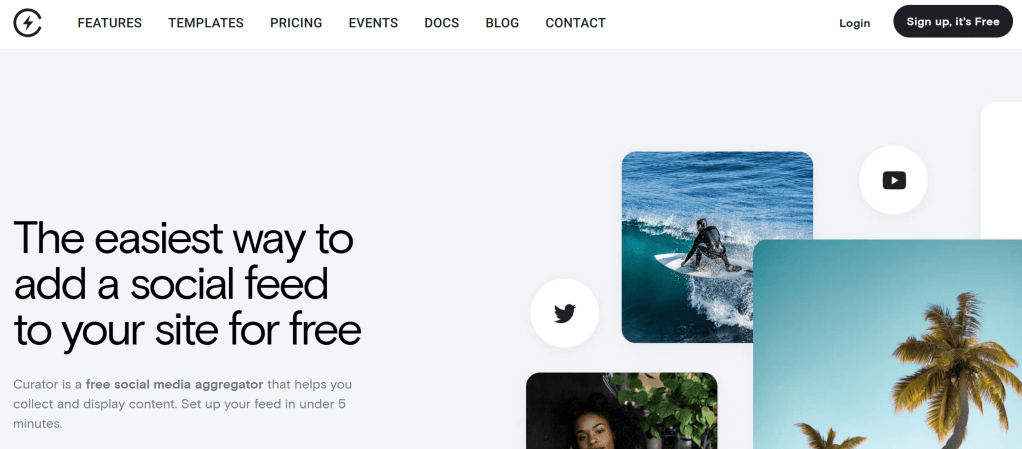
Curator io is a simple yet effective tool for embedding Instagram feeds with minimal impact on site speed.
Key Highlights:
- Fast-loading feeds
- Clean and minimal design
- Easy moderation
- Supports multiple social platforms
It’s ideal for users who prioritize performance and simplicity.
Overview: Which Tool Should You Choose?
Each tool serves a different purpose:
- Taggbox → Best for marketing, UGC, and advanced customization
- Tagembed → Best for simple and quick integration
- Smash Balloon → Best WordPress plugin with Elementor compatibility
- Spotlight → Best for native Elementor widget experience
- Curator.io → Best for lightweight and fast performance
Choosing the right tool depends on your goals—whether it’s design, speed, or conversions.
Step-by-Step: How to Embed Instagram Feed in Elementor Without Coding
Here’s a general process you can follow (based on tools like Taggbox):
Step 1: Choose a Tool
Select a platform that fits your needs.
Step 2: Create Your Instagram Feed
- Connect your Instagram account
- Choose feed type (profile, hashtag, mentions)
Step 3: Customize Your Feed
- Select layout (grid, carousel, slider)
- Adjust colors and spacing
Step 4: Generate Embed Code
Copy the embed code provided by the tool.
Step 5: Add Feed in Elementor
- Open Elementor editor
- Drag the “HTML” widget
- Paste the embed code
- Publish your page
That’s it—you’ve successfully embedded Instagram feed in Elementor without coding.
Best Practices for Elementor Instagram Feeds
To maximize results:
Keep Design Consistent
Match your feed with your website’s branding.
Use High-Quality Content
Only display visually appealing posts.
Optimize for Mobile
Ensure your feed looks great on all devices.
Avoid Overloading
Too many posts can slow down your site.
Common Mistakes to Avoid
When adding an Instagram feed, avoid:
- Using unoptimized widgets that slow your site
- Displaying irrelevant content
- Ignoring customization
- Not testing mobile responsiveness
Final Thoughts
Embedding Instagram feeds in Elementor has never been easier. With no-code tools like Taggbox, Tagembed, and Smash Balloon, you can quickly add Instagram feed to Elementor website and transform your site into a dynamic, engaging platform.
Whether you want a simple feed or a conversion-focused social gallery, the right tool will help you achieve your goals without any technical hassle.


Leave a comment