
Customer reviews have become a crucial part of the online buying journey. Before making a purchase, booking a service, or contacting a business, potential customers often look for feedback from previous customers. Google Reviews are one of the most trusted sources of this feedback, making them a powerful asset for any business website.
By linking Google Reviews to your website, you make it easier for visitors to see real customer experiences, build trust in your brand, and gain confidence in their purchasing decisions. Whether you run a local business, an online store, a restaurant, or a service-based company, showcasing Google Reviews can help improve engagement and increase conversions.
In this guide, you’ll learn different ways to link Google Reviews to your website, including automated solutions, direct links, embedded maps, and manual review displays.
Why Link Google Reviews to Website?
Adding Google Reviews to your website is more than just displaying customer feedback. It helps create a trustworthy online presence and influences visitor behavior.

Build Trust and Credibility
People trust recommendations from other customers. Displaying authentic Google Reviews helps visitors feel more confident about your business.
Increase Conversions
Positive reviews can help reduce customer hesitation and encourage visitors to take action, whether that’s making a purchase, requesting a quote, or booking an appointment.
Improve User Experience
Instead of requiring visitors to search for reviews on Google, you can present them directly on your website for a smoother experience.
Strengthen Social Proof
Customer reviews demonstrate that real people have interacted with your business and had positive experiences.
Showcase Your Reputation
Google Reviews allow you to highlight customer satisfaction and establish authority within your industry.
Ways to Link Google Reviews to Your Website
There are several ways to make your Google Reviews accessible through your website. The best method depends on your goals, website platform, and preferred level of automation.
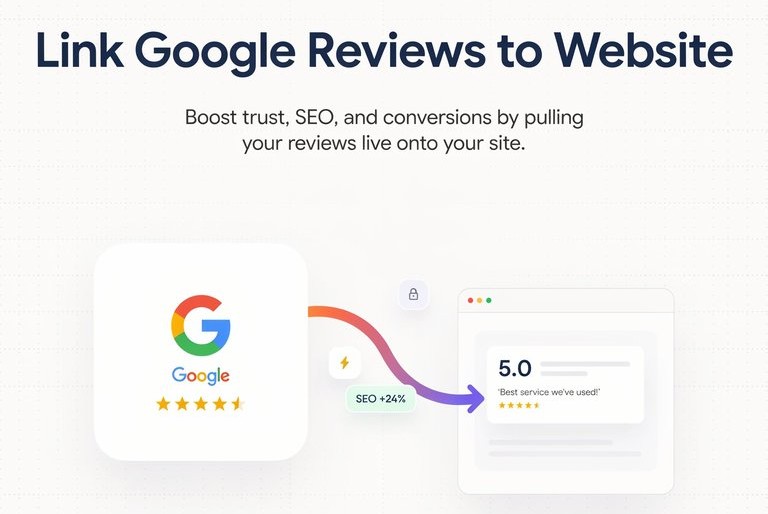
Method 1: Use a Google Reviews Widget (Using Taggbox)
A Taggbox Google Reviews widget allows you to display reviews directly on your website without sending visitors elsewhere. This is often the preferred approach because it combines convenience, visual appeal, and automation.
Step 1: Create a Taggbox Account
Sign up and access the review widget dashboard.
Step 2: Connect Your Google Business Profile
After creating an account, connect your Google Business Profile so the platform can access and display your reviews.
Step 3: Collect and Curate Reviews
Taggbox will automatically collect reviews from your Google Business Profile and allows you to choose which ones appear and make them available for display.
Step 4: Customize the Widget
Adjust the appearance of the review feed to match your website design. You can typically customize:
- Layout styles
- Color schemes
- Fonts
- Review cards
- Star ratings
- Display themes
Step 5: Generate the Embed Code
Once you’re satisfied with the design, generate the widget embed code.
Step 6: Add the Code to Your Website
Paste the embed code into the section of your website where you want the reviews to appear. This could be:
- Homepage
- Service pages
- Product pages
- Landing pages
- Testimonials page
After publishing your changes, visitors will be able to view Google Reviews directly on your website.
Method 2: Add a Direct Google Reviews Link
If you don’t want to display reviews on your website, you can simply direct visitors to your Google Reviews page.
Step 1: Find Your Google Business Profile
Search for your business on Google and open your Google Business Profile.
Step 2: Access the Reviews Section
Navigate to the section where your customer reviews are displayed.
Step 3: Copy the Reviews URL
Copy the URL from your browser’s address bar.
Step 4: Create a Review Button or Link
Add a button or text link on your website with phrases such as:
- Read Our Google Reviews
- See Customer Feedback
- View Reviews on Google
Step 5: Insert the Google Reviews URL
Link the button or text to your Google Reviews page.
Step 6: Test the Link
Verify that the link opens the correct review page and works across devices.
Method 3: Embed Your Google Maps Business Listing
Embedding your Google Maps listing provides visitors with access to your location, contact details, and reviews.
Step 1: Open Google Maps
Search for your business on Google Maps.
Step 2: Click the Share Button
Open your business listing and select the Share option.
Step 3: Choose “Embed a Map”
Google Maps will generate an embed code that can be added to your website.
Step 4: Copy the Embed Code
Copy the provided HTML code.
Step 5: Paste the Code into Your Website
Insert the code into the desired section of your website using a code block or HTML editor.
Step 6: Publish the Page
Save your changes and check that the map is displaying correctly.
Method 4: Manually Display Customer Reviews
For businesses that prefer complete control over content and design, manually adding reviews is another option.
Step 1: Select Your Best Reviews
Choose reviews that accurately represent customer experiences and business strengths.
Step 2: Create a Testimonials Section
Add a dedicated testimonials page or review section on your website.
Step 3: Copy Review Content
Manually add the review text, reviewer name, and rating if applicable.
Step 4: Design the Layout
Use cards, quotes, sliders, or grids to make reviews visually appealing.
Step 5: Update Reviews Regularly
Add new reviews periodically to keep the content relevant and up to date.
Method 5: Add Google Review Screenshots
Review screenshots provide a quick way to display customer feedback without requiring integrations.
Step 1: Capture Review Screenshots
Take screenshots of positive reviews from your Google Business Profile.
Step 2: Optimize the Images
Crop unnecessary elements and ensure the text is easy to read.
Step 3: Upload the Images
Add the screenshots to your website using image sections or galleries.
Step 4: Link to Your Google Reviews Page
Optionally, make the screenshots clickable so visitors can view additional reviews on Google.
Step 5: Refresh Screenshots Periodically
Replace older screenshots with recent reviews to keep the content current.
Best Places to Display Google Reviews on a Website
The placement of your reviews can significantly influence their effectiveness.
Homepage
Showcase reviews on your homepage to establish trust immediately.
Product Pages
Help shoppers make informed purchasing decisions by displaying relevant customer feedback.
Service Pages
Support your service claims with real customer experiences.
Landing Pages
Add social proof to marketing campaigns and lead-generation pages.
Contact Page
Reassure potential customers before they reach out to your business.
Dedicated Testimonials Page
Create a central location where visitors can browse all customer feedback.
Best Practices for Displaying Google Reviews
Prioritize Recent Reviews
Fresh reviews indicate that your business continues to deliver positive customer experiences.
Highlight Detailed Feedback
Longer reviews often provide more value and context than short comments.
Maintain Authenticity
Avoid editing review content, as authenticity plays a key role in building trust.
Ensure Mobile Compatibility
Your reviews should display properly across desktops, tablets, and smartphones.
Match Your Website Branding
Use colors, fonts, and layouts that align with the rest of your website design.
Common Issues When Linking Google Reviews
Reviews Not Appearing
Check your Google Business Profile connection and ensure permissions are active.
Widget Not Loading
Verify that the embed code has been installed correctly.
Reviews Not Updating
Ensure automatic synchronization settings are enabled.
Layout Problems
Review your widget settings and website design compatibility.
Frequently Asked Questions
How do I link Google Reviews to my website?
You can link Google Reviews to your website by using a review widget, adding a direct review link, embedding Google Maps, displaying reviews manually, or using review screenshots.
Can I display Google Reviews directly on my website?
Yes. A Google Reviews widget allows you to display reviews directly on your website without requiring visitors to leave the page.
What is the easiest way to add Google Reviews to a website?
Using a review widget is generally the easiest option because it automates review collection, updates, and display.
Can Google Reviews update automatically on a website?
Yes. Many review widget platforms automatically sync new reviews from your Google Business Profile.
Do Google Reviews help increase conversions?
Reviews build trust and social proof, which can positively influence purchasing decisions and lead generation.
Final Thoughts
Linking Google Reviews to your website is one of the simplest ways to strengthen credibility, improve customer trust, and showcase authentic feedback. Whether you choose a direct review link, an embedded map, manual testimonials, or an automated review widget, making customer reviews easily accessible can enhance the user experience and support business growth.
For businesses seeking a more scalable solution, a review widget provides the convenience of automatic updates, customization, and professional presentation. By integrating Google Reviews into your website, you can turn customer feedback into a powerful trust-building asset that influences visitors and encourages action.


Leave a comment